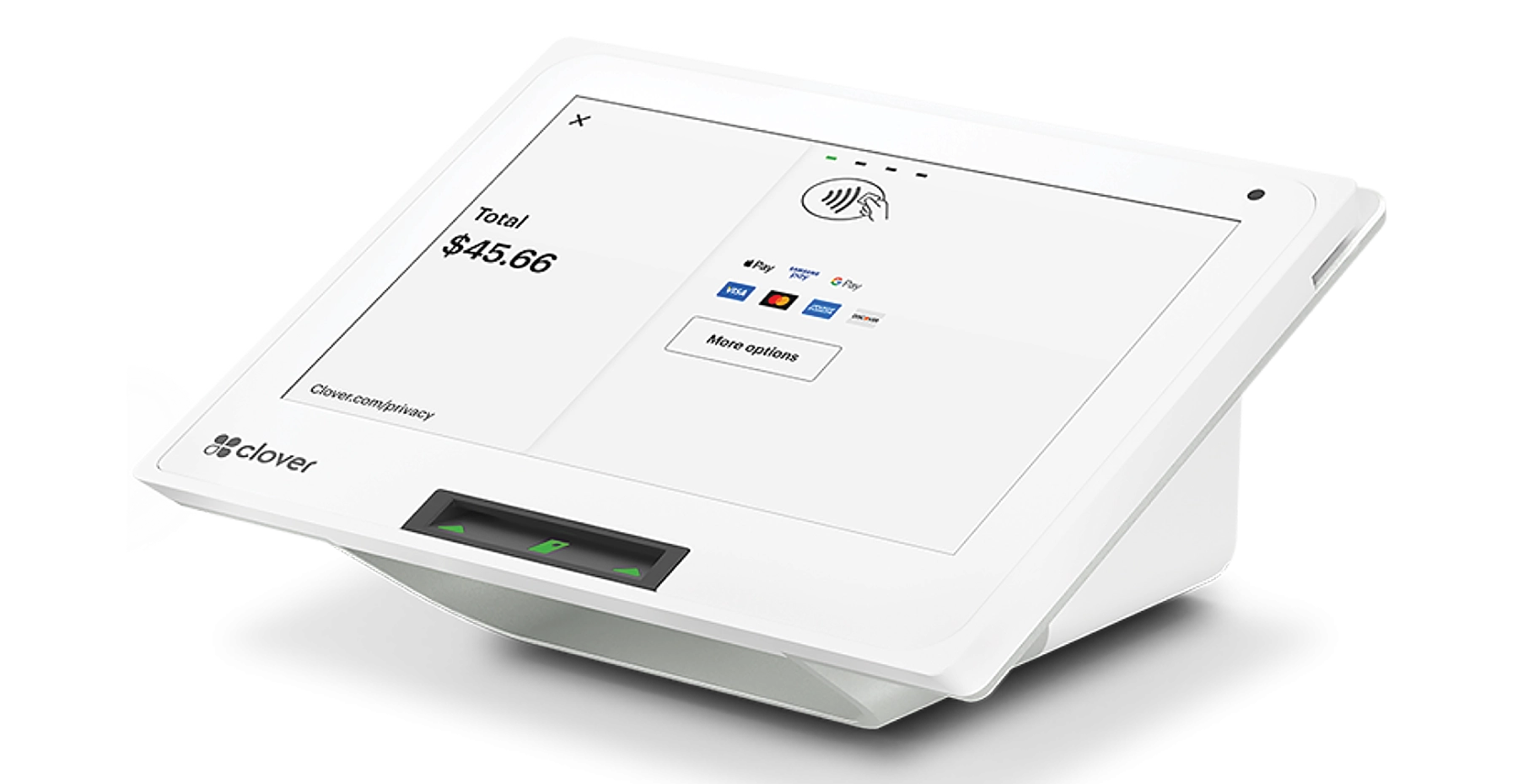

Clover Mini Setup Guide
What’s Included With Your Clover Mini
We’re going to get your Clover Mini going with our Clover Mini setup guide. Here is what comes in the box with your device:

- Clover Mini
- Screwdriver
- Receipt Paper
- Power Cord
Getting Your Power Connected

- Plug the hub cable to the bottom of the terminal
- With the included screwdriver, screw the cable in place (do not over tighten).
- Connect the power power brick to the power hub.
- Simply plug the cable into one of the lower port located on the bottom of the Clover Mini terminal.
- Connect the power cable to the power brick.
- Tighten the screws (do not over tighten), give the cord slack if needed. This will depend on where you will place your register.
- Plug your power cable to your power source.
- Your Mini will come with a roll pre-installed. To change your paper roll, insert your paper roll into the back side of the Mini terminal.
- Pull the paper out from the top and close the terminal.

Connect To Your Network
When you turn on your Clover Mini the first time, you will be asked to complete some setup steps. Please follow the instructions on the video or Clover Mini setup guide above to set up your Wi-Fi or Ethernet.
Help and Support
Find answers by exploring our support YouTube channel and review the Clover troubleshooting to find the answers to common issues.
Need help? Contact our Support Team if you have any trouble setting up your new Terminal.