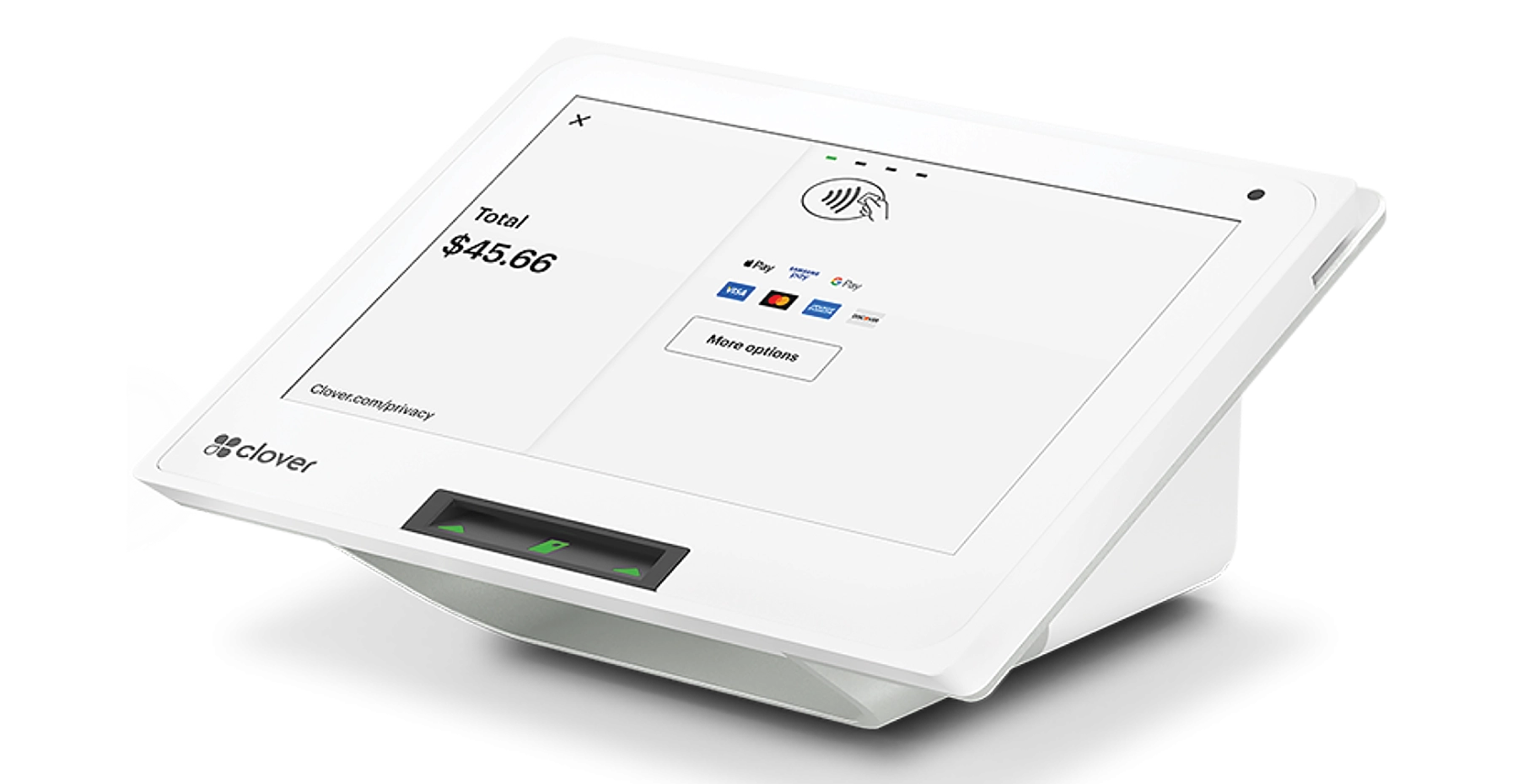

Clover Compact Setup Guide

The Clover Compact setup guide will help you unbox, connect, and activate your Clover Compact device in just a few easy steps. This point-of-sale system is designed for small businesses that need a reliable, space-saving countertop solution. By following this step-by-step guide, you’ll be ready to start processing payments quickly and confidently.
What’s Included in the Box
When you receive your Clover Compact package, double-check that all the necessary items are included:
- Clover Compact device
- Power adapter and charging cable
- Quick start guide and paperwork
- Receipt paper roll
- Optional PIN shield or accessories

Step 1 – Power On the Clover Compact
- Connect the power adapter to the device.
- Plug the adapter into a power outlet.
- Hold down the power button until the Clover logo appears on screen.
When the device boots up for the first time, you’ll be guided through the initial welcome setup. Make sure your device remains plugged in during this process so the battery charges fully.
Step 2 – Load Receipt Paper
Your Clover Compact comes with a built-in printer for receipts.
- Open the back panel of the device.
- Insert the paper roll with the edge facing upward.
- Pull a small portion of paper through the slot.
- Close the compartment firmly.
A test print will confirm that the paper roll has been loaded correctly.
When the device boots up for the first time, you’ll be guided through the initial welcome setup. Make sure your device remains plugged in during this process so the battery charges fully.
Getting Your Power Connected

- Simply Connect your power extension to the device.
- Connect the power cable to your power source.
- Your device will automatically power on.

Changing Your Receipt Paper
- Open the back side of the Clover Compact.
- Insert the receipt tape with the paper facing upwards.
- Pull paper through and close the compartment.
Installing PIN Shield
- Remove film.
- Place over terminal keyboard and firmly press down.
Connect To Your Network
When you turn on your Clover Compact for the first time, you will be asked to complete some setup steps. Please follow the instructions on the video to set up your Wi-Fi or Ethernet.
Help and Support
Find answers by exploring our support YouTube channel and review the Clover troubleshooting to find the answers to common issues.
Need help? Contact our Support Team if you have any trouble setting up your new Terminal.