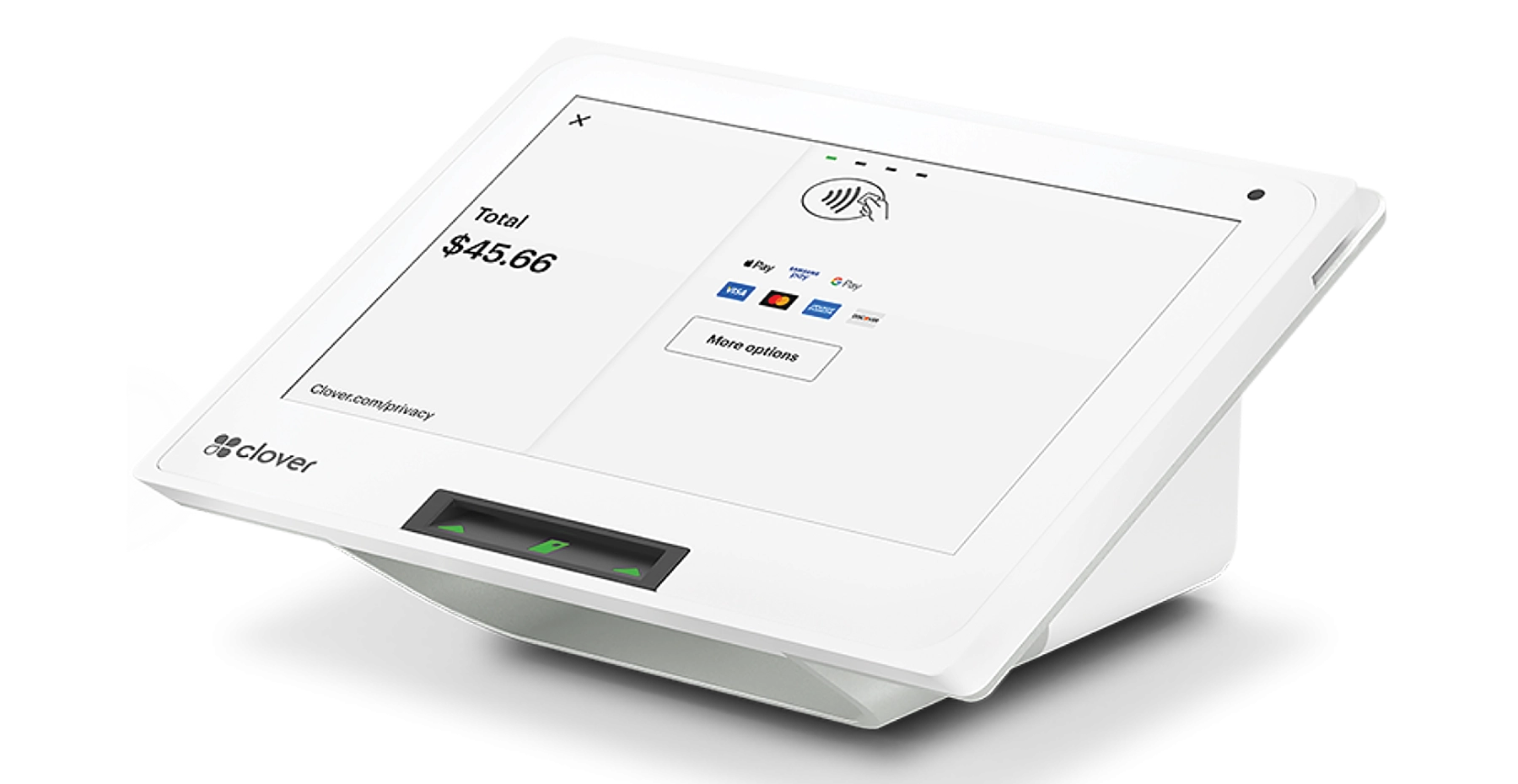

Setup Your Point-of-Sale Device
Choose your device to get started:


Equipment Setup Support From Velocity Merchant Services
Pick your device above to open a step-by-step equipment setup guide. Each guide covers what is in the box, power, receipt paper, your network connection and a final test, with photos and video where available.
Getting equipment setup right the first time matters. A terminal that is not activated, not on the right network or missing receipt paper will slow your line on day one. Follow the guide for your device in order, run the final test before you open, and call us if anything on screen does not match what you see in the guide.
Velocity Merchant Services has supported small businesses since 1998. When you get your POS through VMS, it ships programmed for your account and ready to plug in and play, and our support does not end at delivery. Not sure which device fits your business? Compare options on our All Devices page, or review Clover’s own setup resources.
Find Your Guide by Device Type
- Countertop terminals: Clover Mini, Clover Compact, Clover Duo, Dejavoo QD2 and Dejavoo QD4.
- Handheld devices: Clover Flex and Clover Flex Pocket for tableside, curbside and on-the-go payments.
- Kitchen and self-service: Clover KDS 14″, Clover KDS 24″ and Clover Kiosk.
- Back-office software: the Clover Dashboard for sales reports, inventory and employees.
Before You Start Your Equipment Setup
- Have your Wi-Fi network name and password ready, or run an Ethernet cable to the spot where the device will sit.
- Place the device near a grounded power outlet. We recommend a surge protector.
- Keep your Clover welcome email handy. It has the activation code most Clover devices ask for.
- Keep the box and packing materials until everything is working.
Need a hand with your equipment setup? VMS Installation Support will walk you through it, step by step.
Call 888-902-6227 x360 or email installation@getvms.com
Available 8:00 am – 4:30 pm CST. See all VMS support contacts.
Equipment Setup FAQ
Which equipment setup guide should I use?
Match the model name on your device or packing slip to a tile above, such as Clover Mini or Dejavoo QD2. Each guide covers that device’s equipment setup from unboxing to your first test sale.
Where do I find my Clover activation code?
VMS ships your device ready to plug in and play, so most merchants never need one. If the screen does ask for an activation code, check your Clover welcome email or the top of your Clover web dashboard, or call VMS Installation Support at 888-902-6227 x360.
What if my equipment setup does not match the guide?
Stop and call VMS Installation Support at 888-902-6227 x360. We will walk you through it by phone so you do not lose time or sales.
Can VMS help set up equipment I already own?
Yes. If you process with VMS, our team can help you set up and connect compatible Clover and Dejavoo equipment. Call us before you start.
Do I need the internet for equipment setup?
Yes. Every device needs a Wi-Fi, Ethernet or cellular connection to activate, download updates and process payments. Have your network details ready before you start your equipment setup.
My device won’t power on. What should I check?
Confirm every cable is fully seated, the power cord is plugged into a working outlet and any power switch is on. If it still will not start, call VMS Installation Support at 888-902-6227 x360.
Can I move my equipment to a new location later?
Yes. Unplug the device, move it and repeat the power and network steps in its equipment setup guide. If you are changing networks or adding a second location, call VMS first so your account settings match.